Introduction
Hosting an ASP.NET Core application on a Virtual Private Server (VPS) remains one of the most cost-effective and flexible options for businesses in Europe and the USA. You get dedicated resources, predictable performance, full administrative control, and the freedom to meet strict compliance requirements. For IT teams and business decision-makers, a properly configured VPS can deliver enterprise-grade reliability without the recurring costs of fully managed platforms—provided you set it up with security, performance, and maintainability in mind.
This guide explains how to configure a VPS for ASP.NET Core hosting step-by-step, covering both the most common production stacks: Linux VPS (Ubuntu) with Nginx as a reverse proxy and Windows Server VPS with IIS. You’ll also learn the practical decisions that matter to stakeholders: how to choose a VPS, harden it, automate deployments, enable SSL/TLS, set up monitoring, and avoid common pitfalls that cause downtime.
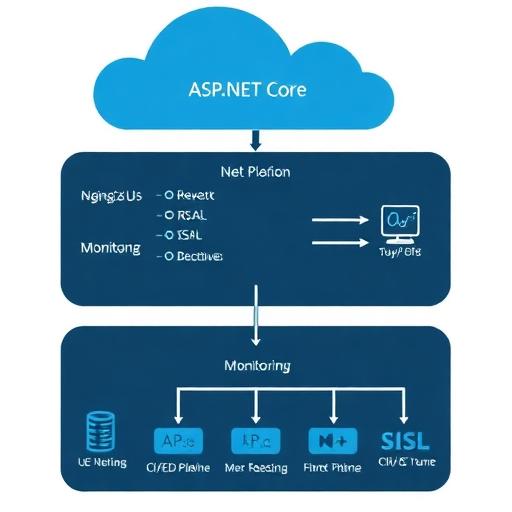
1) VPS Planning for ASP.NET Core: What to Decide Before Setup
Choose Linux vs Windows VPS (Business and Technical Trade-offs)
Linux VPS (Ubuntu/Debian) + Nginx is the most common option for ASP.NET Core hosting in Europe and the USA due to lower licensing costs, strong security tooling, and excellent performance as a reverse proxy.
- Best for: ASP.NET Core apps targeting .NET 6/.NET 8, microservices, APIs, containerized apps, DevOps teams.
- Key benefits: Cost efficiency, easy automation, Nginx performance, first-class support for Let’s Encrypt and systemd.
Windows Server VPS + IIS is ideal if you rely on Windows-specific workloads or existing enterprise tooling.
- Best for: Organizations using Windows authentication patterns, legacy integrations, or teams standardized on IIS and Windows Server policies.
- Key benefits: Familiar admin experience, tight integration with IIS, Windows event logging, and certain enterprise compliance workflows.
Right-Size the VPS (CPU, RAM, Storage, and Bandwidth)
For decision-makers, right-sizing is a budget and reliability issue. Under-provisioning causes slow response times and outages; over-provisioning wastes spend.
- Typical starting point for small production apps: 2 vCPU, 4–8 GB RAM, 60–120 GB SSD/NVMe.
- API-heavy workloads: prioritize CPU and RAM; monitor garbage collection and thread pool behavior.
- Data-heavy workloads: prioritize fast NVMe storage and consider a managed database rather than hosting DB on the same VPS.
- Bandwidth: ensure your provider offers adequate transfer for your region and traffic patterns.
Region and Latency: Europe and USA Considerations
Host close to your primary users to reduce latency and improve Core Web Vitals and user experience.
- USA: choose East or West based on your user base (e.g., Virginia/New York vs California/Oregon).
- Europe: Frankfurt, Amsterdam, London, Paris are common hubs; Frankfurt is popular for EU centrality.
- Compliance: consider data residency expectations (e.g., GDPR). If you serve EU customers, keep personal data processing within EU-friendly regions where appropriate.
DNS and Domain Setup
Ensure you control DNS records and can manage A/AAAA records and TLS validation. For production, plan for:
- A record pointing to VPS IPv4 address.
- AAAA record for IPv6 (optional but recommended if your provider supports stable IPv6).
- Low TTL during migration windows, then increase.
2) Baseline VPS Hardening (Applies to Linux and Windows)
Security configuration is a core hosting requirement, not an add-on. A VPS directly exposed to the internet will be probed within minutes. Harden early to reduce breach risk and protect business continuity.
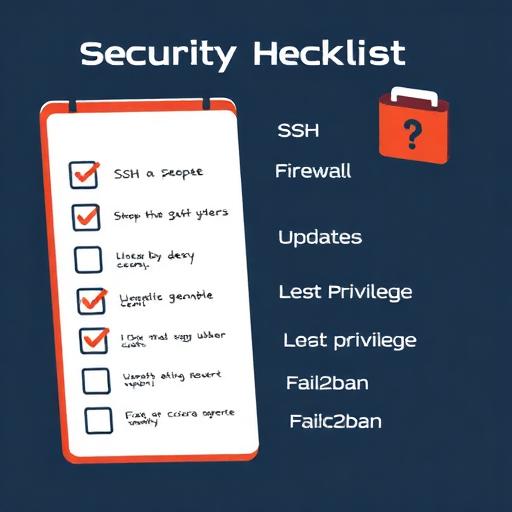
Use Least Privilege and Strong Authentication
- Create a non-root admin user for daily operations.
- Disable password-based remote login where possible and use SSH keys (Linux) or strong RDP controls (Windows).
- Use MFA on your VPS provider account and on CI/CD systems.
Patch Management
Keep the OS and runtime patched to reduce exposure to known vulnerabilities.
- Linux: enable unattended security updates where appropriate.
- Windows: plan a maintenance window and use Windows Update policies.
Firewall and Exposure Control
Only expose what you need.
- Public ports typically needed: 80 (HTTP), 443 (HTTPS).
- Admin ports: 22 (SSH) or 3389 (RDP) should be restricted by IP allowlists where possible.
- Database ports: do not expose publicly unless absolutely necessary; prefer private networking or managed DB services.
Backups and Disaster Recovery
For business stakeholders, backups define your recovery posture. Use both provider snapshots and application-level backups.
- Provider snapshots: fast restore for system failures and misconfigurations.
- App data backups: database dumps, object storage backups, and configuration exports.
- Test restores: a backup is only useful if it restores successfully.
3) Configure a Linux VPS (Ubuntu) for ASP.NET Core Hosting with Nginx
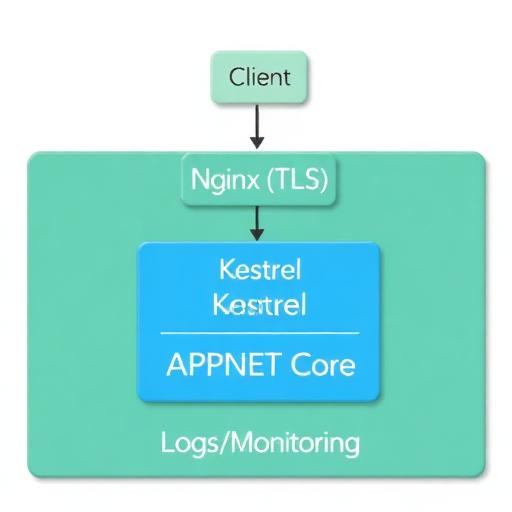
This is the most popular production approach for ASP.NET Core hosting on a VPS: Kestrel runs the application and Nginx handles SSL, HTTP/2, compression, and reverse proxying.
Step 1: Initial Server Setup
After provisioning Ubuntu LTS (commonly used in production environments in both Europe and the USA):
- Create a new user with sudo permissions.
- Configure SSH keys for secure remote access.
- Disable root SSH login and password auth if feasible.
- Set the correct timezone for operations, or use UTC for consistency.
Step 2: Install .NET Runtime (or SDK if Needed)
For production hosting, you typically install the .NET runtime (smaller footprint) unless you compile on the server. Most teams build artifacts in CI and deploy published output.
- Recommended: Use .NET LTS or current stable (for example, .NET 8).
- Validate: confirm the runtime version aligns with your application’s target framework.
Operational note: Installing multiple runtimes can help you host multiple applications, but standardize versions to reduce maintenance overhead.
Step 3: Create a Secure Deployment Directory
Use a consistent folder structure for maintainability:
- /var/www/yourapp for the published output
- /var/log/yourapp for application logs (if file-based logging is used)
Set permissions so your service user can read/execute the app and write only where needed.
Step 4: Configure systemd to Run ASP.NET Core as a Service
systemd keeps your application running, restarts it on failure, and centralizes logs through journald. This is critical for production stability.
- Create a systemd unit for your app.
- Use a dedicated service user instead of running as root.
- Set environment variables for ASP.NET Core configuration (ASPNETCORE_ENVIRONMENT=Production).
- Enable automatic restart to improve availability.
Also consider setting resource limits and restart throttling to prevent crash loops from consuming resources.
Step 5: Install and Configure Nginx as a Reverse Proxy
Nginx typically sits in front of Kestrel and provides:
- SSL/TLS termination
- HTTP/2 support (improves perceived performance)
- Static file caching and compression
- Request buffering and upstream health behavior
A standard Nginx site configuration for ASP.NET Core includes:
- server_name your domain
- proxy_pass to Kestrel (usually localhost:5000 or a Unix socket)
- proxy headers (Host, X-Forwarded-For, X-Forwarded-Proto)
- client_max_body_size for uploads
For production correctness, ensure the ASP.NET Core app is configured to respect forwarded headers so it generates correct URLs and enforces HTTPS properly behind the proxy.
Step 6: Enable HTTPS with Let’s Encrypt SSL
HTTPS is non-negotiable for modern security standards, compliance expectations, and browser trust.
- Use Let’s Encrypt for free SSL certificates.
- Automate renewals to avoid certificate expiry incidents.
- Redirect HTTP to HTTPS for consistent security.
For enterprises or regulated industries, you can replace Let’s Encrypt with a commercial certificate and keep the same Nginx TLS configuration approach.
Step 7: Configure the Firewall (UFW) and Basic Intrusion Protection
On Ubuntu, a common approach is UFW:
- Allow OpenSSH (or restricted SSH)
- Allow Nginx Full (ports 80/443)
- Deny everything else by default
For brute-force protection, consider tools like fail2ban to block repeated login attempts.
Step 8: Logging and Monitoring on Linux
Business decision-makers care about uptime and response times; IT teams need visibility to troubleshoot quickly.
- Nginx access/error logs: track traffic patterns and 4xx/5xx errors.
- systemd journal: centralized service logs for the app.
- Application logging: structured logs (JSON) for easier analysis.
- Monitoring: CPU/RAM/disk, process health, endpoint checks, TLS expiration alerts.
If you have multiple servers or strict SLA requirements, plan for centralized logging (e.g., shipping logs to a SIEM or log analytics platform).
Step 9: Performance Tuning for Production
On a VPS, performance improvements are often about eliminating bottlenecks and ensuring predictable resource usage.
- Enable gzip or Brotli in Nginx where appropriate.
- Use HTTP/2 for better parallelism on TLS connections.
- Optimize caching headers for static assets.
- Use Kestrel best practices (don’t expose Kestrel directly to the public internet).
- Consider a CDN for global audiences across Europe and the USA.
For high-traffic scenarios, load testing before go-live helps validate that your VPS size and configuration match real-world demand.
4) Configure a Windows Server VPS for ASP.NET Core Hosting with IIS
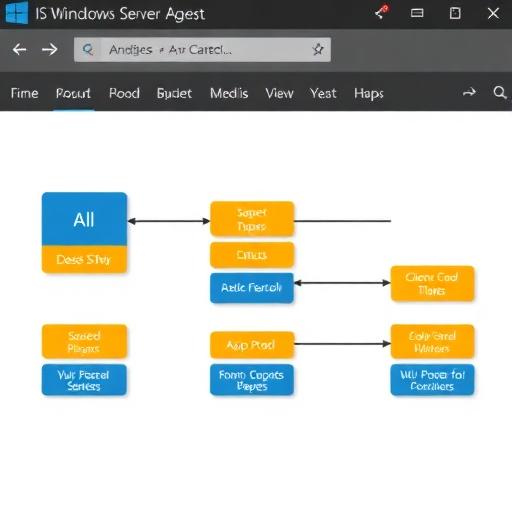
A Windows VPS is a strong choice for organizations standardized on Microsoft server tooling, or when your application relies on Windows-specific capabilities. IIS provides a mature web server with built-in management tools and straightforward SSL configuration.
Step 1: Secure Remote Access (RDP Hardening)
- Use strong admin credentials and rotate them regularly.
- Restrict RDP access by IP allowlist where possible.
- Consider an RDP gateway or VPN-based access for enterprise environments.
- Enable MFA on provider console and admin tools.
Step 2: Install IIS and Required Windows Features
IIS roles and features vary by app needs. For most ASP.NET Core deployments you’ll want:
- Web Server (IIS)
- Static Content
- HTTP Logging
- Request Filtering
- WebSocket (if your app uses SignalR or WebSockets)
Step 3: Install the .NET Hosting Bundle
On Windows with IIS, install the .NET Hosting Bundle that matches your application runtime (for example, .NET 8 Hosting Bundle). This installs the ASP.NET Core runtime and the IIS ASP.NET Core Module required to run the app behind IIS.
Step 4: Publish and Deploy the Application
Best practice is to publish from CI/CD and deploy the published artifacts:
- Publish as framework-dependent or self-contained depending on your operations model.
- Deploy to a folder like C:\inetpub\wwwroot\YourApp.
- Set permissions for the IIS App Pool identity to read the app and write only where necessary.
Step 5: Configure IIS Site, App Pool, and Hosting Settings
- Create a new website with your domain binding.
- Set the app pool (No Managed Code is typical for ASP.NET Core with IIS).
- Configure environment variables for Production settings.
- Enable stdout logging temporarily for troubleshooting, then disable to avoid disk growth.
Also ensure your application uses forwarded headers correctly if IIS is behind additional proxies or a load balancer.
Step 6: Configure HTTPS (SSL/TLS) on IIS
For a professional production setup:
- Install an SSL certificate (Let’s Encrypt via compatible tools, or a commercial certificate).
- Bind HTTPS to your site on port 443.
- Force HTTPS redirect using URL Rewrite or application settings.
Plan certificate renewal automation to avoid outages from expired certificates.
Step 7: Windows Firewall and Security Baselines
Ensure only required ports are open:
- 80/443 for web traffic
- 3389 only if required, ideally restricted to known IPs
Additionally, standardize hardening using security baselines aligned to your organization’s policies (for many teams, that means CIS benchmarks or internal controls).
Step 8: Monitoring and Diagnostics on Windows
- Event Viewer for application and system logs
- IIS logs for traffic and error analysis
- Performance counters (CPU, memory, ASP.NET Core request metrics where applicable)
- Uptime monitoring with synthetic checks and alerting
5) Deployment Options: Manual, Git-Based, CI/CD, and Docker
How you deploy affects risk, speed, and repeatability. Business stakeholders typically want fewer outages; IT teams want predictable releases and fast rollback.
Option A: Manual Deployment (Not Ideal for Frequent Releases)
Manual deployments via SCP/FTP/RDP are sometimes used for small apps, but increase risk due to human error. If you choose manual deployment, standardize a checklist and maintain versioned artifacts.
Option B: Git-Based Deployment
Some teams pull from Git on the VPS and build there. This can work, but it couples production servers to build tools and can complicate dependency management. Prefer building in CI when possible.
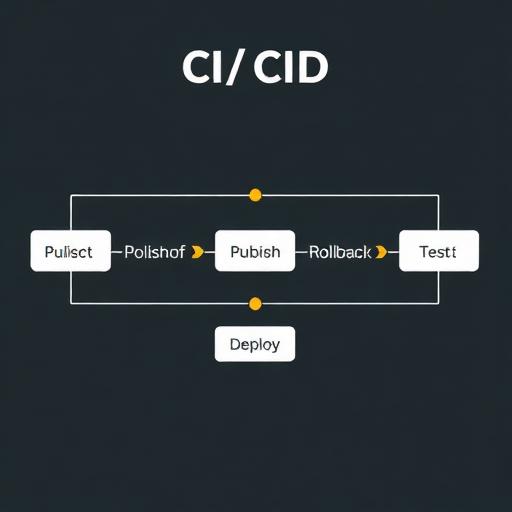
Option C: CI/CD with GitHub Actions or Azure DevOps
CI/CD is the preferred pattern for ASP.NET Core hosting in modern teams:
- Build and test on every commit
- Publish artifacts consistently
- Deploy using SSH (Linux) or WinRM/agent-based methods (Windows)
- Rollback quickly by redeploying a previous artifact
This approach reduces downtime, improves auditability, and supports compliance documentation (who deployed what and when).
Option D: Docker on a VPS (Highly Repeatable)
Docker is an increasingly popular method for VPS hosting:
- Consistency: same container runs across environments.
- Isolation: dependencies are packaged with the app.
- Scalability: easier to replicate services.
A common pattern is Nginx on the host handling TLS and reverse proxying to Docker containers, or using a containerized reverse proxy. For business-critical apps, also consider container health checks and automatic restarts.
6) Database and Storage Considerations (Avoid Common VPS Mistakes)
Separate App and Database When Possible
Running your database on the same VPS can work for small workloads but increases risk: a single failure impacts everything. For production systems serving Europe and the USA, consider:
- Managed SQL services for reliability, backups, and patching.
- Private networking or secure tunnels between app and DB.
- Connection resiliency in your ASP.NET Core data access layer.
File Uploads and Static Assets
Storing user uploads on the VPS filesystem makes scaling and recovery harder. Prefer object storage (S3-compatible) for:
- Durability and lifecycle policies
- Easy CDN integration
- Simpler horizontal scaling
Secrets Management
Do not store secrets in source control. Use:
- Environment variables for runtime secrets (with secure CI/CD handling)
- Secret vaults for larger organizations
- Encrypted configuration where required by policy
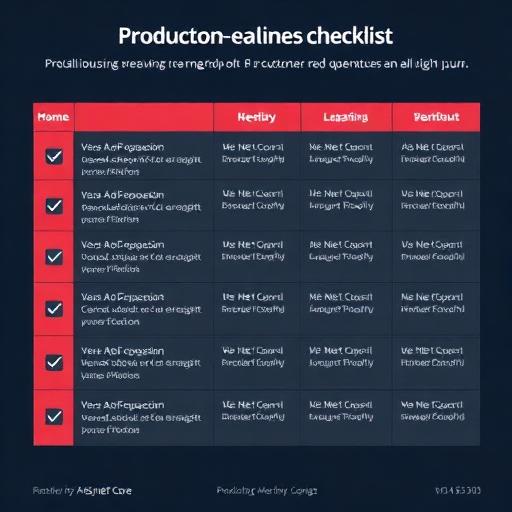
7) Production Readiness Checklist for ASP.NET Core on a VPS
Use this checklist to align technical execution with business expectations for uptime, security, and maintainability.
- OS hardened: updates enabled, unused services removed, secure admin access
- Firewall configured: only required ports open
- HTTPS enabled: valid certificate, auto-renewal, HTTP→HTTPS redirect
- Reverse proxy configured: Nginx or IIS with correct forwarded headers
- Process management: systemd on Linux, IIS app pool settings on Windows
- Observability: logs, metrics, alerting, uptime monitoring
- Backups: snapshots and data backups, tested restores
- Deployment automation: CI/CD with rollback strategy
- Performance: compression, caching headers, database optimization, load tests
- Security scanning: dependency checks and vulnerability management
8) Common Issues and How to Prevent Them
502 Bad Gateway (Nginx) or 500 Errors (IIS)
- Cause: app not running, wrong port, permissions, missing runtime.
- Prevention: verify service health, check logs, ensure correct reverse proxy target and runtime installation.
HTTPS Works, but Redirect Loops or Wrong URLs
- Cause: forwarded headers not configured; app thinks it’s on HTTP behind proxy.
- Prevention: configure forwarded headers in ASP.NET Core and in proxy settings.
Slow Performance Under Load
- Cause: insufficient RAM/CPU, database bottlenecks, no caching, inefficient queries.
- Prevention: monitor resource usage, optimize DB, use caching, consider scaling and CDN.
Disk Full Due to Logs
- Cause: verbose logging without rotation.
- Prevention: enable log rotation, centralize logs, set retention policies.
Downtime During Deployments
- Cause: overwriting files in place, missing health checks.
- Prevention: use blue/green or rolling deployment patterns, deploy to a new folder and switch, add health checks and warm-up.
Conclusion: Build a VPS Hosting Setup You Can Trust
Configuring a VPS for ASP.NET Core hosting is not just a technical task—it’s an operational decision that affects uptime, security posture, customer experience, and long-term costs. For most organizations in Europe and the USA, a Linux VPS with Nginx and systemd offers an excellent balance of performance, control, and cost efficiency. Windows Server VPS with IIS remains a strong choice when Microsoft-native tooling and Windows-specific requirements drive the decision.
Whether you choose Linux or Windows, the essentials are the same: harden the server, run the app as a managed service, terminate SSL correctly, automate deployments, and implement monitoring and backups. With these foundations in place, your VPS becomes a reliable production environment for ASP.NET Core applications—ready to support growth and evolving compliance requirements.
Call to action: If you want a secure, production-ready ASP.NET Core VPS setup with automated CI/CD, SSL, monitoring, and a documented runbook for your internal team, contact our software development and DevOps specialists for a tailored hosting architecture and implementation plan.